> ## Documentation Index
> Fetch the complete documentation index at: https://tomee-mintlify-2b1ef2b2.mintlify.site/llms.txt
> Use this file to discover all available pages before exploring further.
# Configure the assistant
> Configure the AI assistant in your Mintlify dashboard: toggle availability, customize responses, add starter questions, set bot protection, and manage billing.
Configure the assistant on the [Assistant](https://app.mintlify.com/products/assistant) page of your dashboard. Manage billing and usage on the [Usage](https://app.mintlify.com/settings/organization/usage) page.
## Enable or disable the assistant
Toggle the assistant status to enable or disable the assistant for your documentation site.

 ## Set deflection emails
In the Response Handling section, enable the assistant to prompt users to contact your support and sales teams when it can't answer a question on its own.
Enter one or both of the following addresses:
* **Support**: For questions the assistant can't resolve from your documentation.
* **Sales**: For questions about pricing, plans, or purchasing.
When you enable deflection and the assistant detects a matching question, an in-chat contact form appears. The form asks for the user's first name, last name, company, company email, and a message. Mintlify emails the submission to the appropriate team, which can respond directly to the user's email.
If you prefer to route support questions to your existing support channels instead, disable the **Contact form** in the Response handling section.
When you disable the contact form, the assistant directs users to your support email address in plain text instead of showing the in-chat form. Sales questions still use the in-chat form when a sales email is configured.
## Search domains
In the Response Handling section, configure domains that the assistant can use for web search to find additional context when answering questions.
* Domains must be publicly available.
* Domains that require JavaScript to load are not supported.
## Set deflection emails
In the Response Handling section, enable the assistant to prompt users to contact your support and sales teams when it can't answer a question on its own.
Enter one or both of the following addresses:
* **Support**: For questions the assistant can't resolve from your documentation.
* **Sales**: For questions about pricing, plans, or purchasing.
When you enable deflection and the assistant detects a matching question, an in-chat contact form appears. The form asks for the user's first name, last name, company, company email, and a message. Mintlify emails the submission to the appropriate team, which can respond directly to the user's email.
If you prefer to route support questions to your existing support channels instead, disable the **Contact form** in the Response handling section.
When you disable the contact form, the assistant directs users to your support email address in plain text instead of showing the in-chat form. Sales questions still use the in-chat form when a sales email is configured.
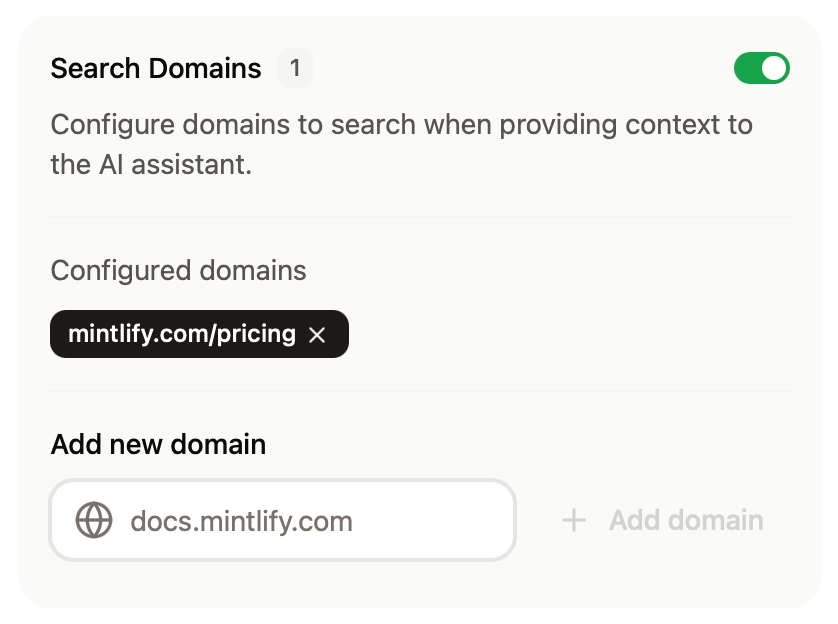
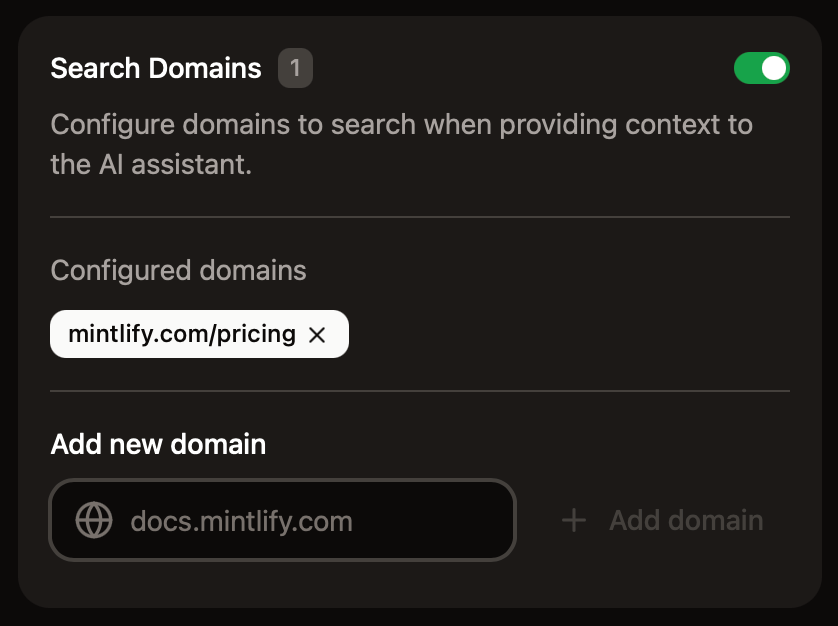
## Search domains
In the Response Handling section, configure domains that the assistant can use for web search to find additional context when answering questions.
* Domains must be publicly available.
* Domains that require JavaScript to load are not supported.
 For more precise control over what the assistant can search, use filtering syntax.
* **Domain-level filtering**
* `example.com`: Search only the `example.com` domain
* `docs.example.com`: Search only the `docs.example.com` subdomain
* `*.example.com`: Search all subdomains of `example.com`
- **Path-level filtering**
* `docs.example.com/api`: Search all pages under the `/api` subpath
* **Multiple patterns**
* Add multiple entries to target different sections of sites
## Add sample questions
Help your users begin conversations with the assistant by adding starter questions.
The assistant can generate page-specific questions based on the page a user is viewing, or you can add persistent questions that are available across pages.
You can add up to three starter questions. Click **Ask Assistant** for recommended questions based on your documentation.
For more precise control over what the assistant can search, use filtering syntax.
* **Domain-level filtering**
* `example.com`: Search only the `example.com` domain
* `docs.example.com`: Search only the `docs.example.com` subdomain
* `*.example.com`: Search all subdomains of `example.com`
- **Path-level filtering**
* `docs.example.com/api`: Search all pages under the `/api` subpath
* **Multiple patterns**
* Add multiple entries to target different sections of sites
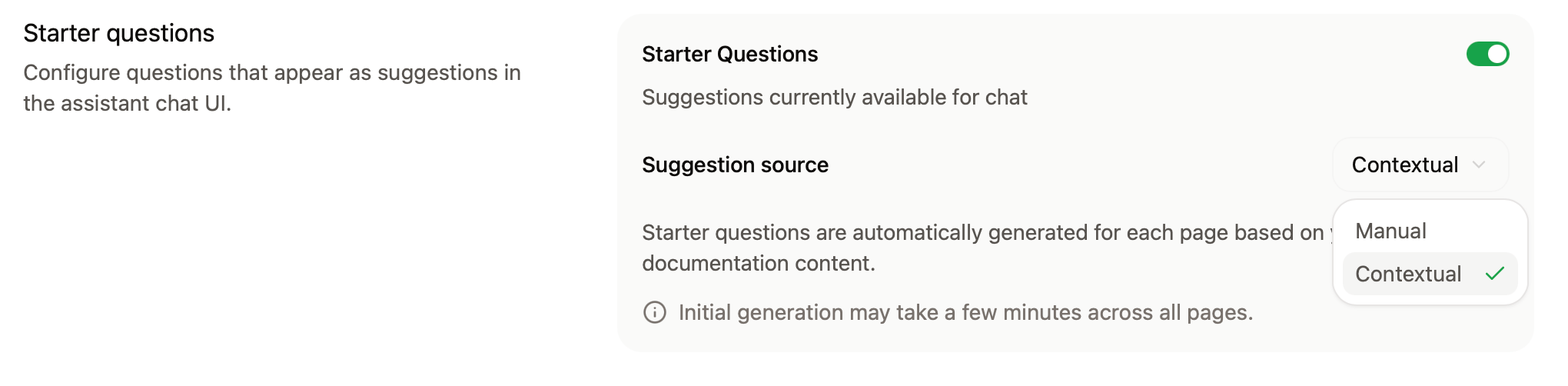
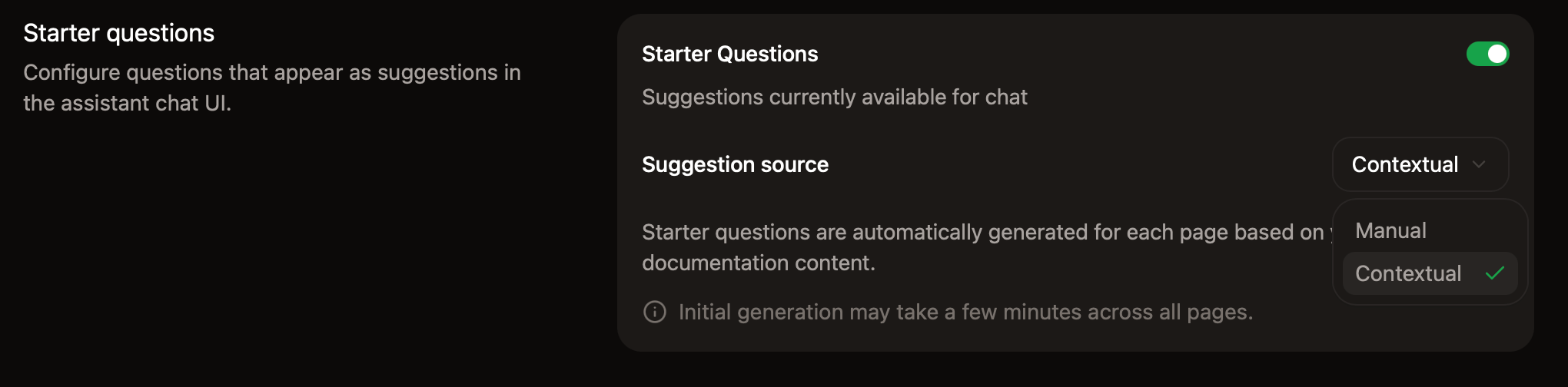
## Add sample questions
Help your users begin conversations with the assistant by adding starter questions.
The assistant can generate page-specific questions based on the page a user is viewing, or you can add persistent questions that are available across pages.
You can add up to three starter questions. Click **Ask Assistant** for recommended questions based on your documentation.
 ## Bot protection
In the Bot Protection section, enable invisible captcha to protect your assistant from automated abuse. The bot protection is privacy-friendly and invisible to nearly all visitors.
To enable bot protection:
1. Go to the [Assistant settings](https://app.mintlify.com/products/assistant/settings) page in your dashboard.
2. In the **Bot Protection** section, toggle **Invisible Captcha** on.
Changes take up to 10 minutes to propagate.
If you use custom [Content Security Policy headers](/deploy/csp-configuration), you must include `hcaptcha.com` and `*.hcaptcha.com` in your allowlist.
## Manage billing
The assistant runs on credits. Each assistant message consumes credits, where a message is any user interaction with the assistant that receives a response. See [Credit pricing](/credits) for more information.
### Change your credit tier
1. Go to the [Usage](https://app.mintlify.com/settings/organization/usage) page of your dashboard.
2. In the **Credit packages** section, select a tier from the dropdown menu.
3. Confirm the change to proceed to checkout.
### Allow overages
Credits are shared across your organization, but overages are configured per deployment. Mintlify disables overages by default. When overages are off for a deployment, the assistant on that deployment becomes unavailable once your organization's shared credit balance is spent, and stays unavailable until the balance resets.
To allow overages, enable them in the **Spending controls** section of the [Usage](https://app.mintlify.com/settings/organization/usage) page of your dashboard. If you enable overages, each credit spent beyond the shared balance incurs an overage charge.
### Set usage alerts
In the **Spending controls** section of your dashboard, set usage alerts to receive an email when your organization reaches a certain percentage of its shared credit balance.
### Higher credit volumes
For plans larger than 10,000 credits per month, [contact sales](mailto:sales@mintlify.com) to discuss custom credit packages.
## Bot protection
In the Bot Protection section, enable invisible captcha to protect your assistant from automated abuse. The bot protection is privacy-friendly and invisible to nearly all visitors.
To enable bot protection:
1. Go to the [Assistant settings](https://app.mintlify.com/products/assistant/settings) page in your dashboard.
2. In the **Bot Protection** section, toggle **Invisible Captcha** on.
Changes take up to 10 minutes to propagate.
If you use custom [Content Security Policy headers](/deploy/csp-configuration), you must include `hcaptcha.com` and `*.hcaptcha.com` in your allowlist.
## Manage billing
The assistant runs on credits. Each assistant message consumes credits, where a message is any user interaction with the assistant that receives a response. See [Credit pricing](/credits) for more information.
### Change your credit tier
1. Go to the [Usage](https://app.mintlify.com/settings/organization/usage) page of your dashboard.
2. In the **Credit packages** section, select a tier from the dropdown menu.
3. Confirm the change to proceed to checkout.
### Allow overages
Credits are shared across your organization, but overages are configured per deployment. Mintlify disables overages by default. When overages are off for a deployment, the assistant on that deployment becomes unavailable once your organization's shared credit balance is spent, and stays unavailable until the balance resets.
To allow overages, enable them in the **Spending controls** section of the [Usage](https://app.mintlify.com/settings/organization/usage) page of your dashboard. If you enable overages, each credit spent beyond the shared balance incurs an overage charge.
### Set usage alerts
In the **Spending controls** section of your dashboard, set usage alerts to receive an email when your organization reaches a certain percentage of its shared credit balance.
### Higher credit volumes
For plans larger than 10,000 credits per month, [contact sales](mailto:sales@mintlify.com) to discuss custom credit packages.